 Scrolling Stories
How a story is built
Beats, screens and pace, the storyboard, the timeline, and Edit and Preview.
Beats
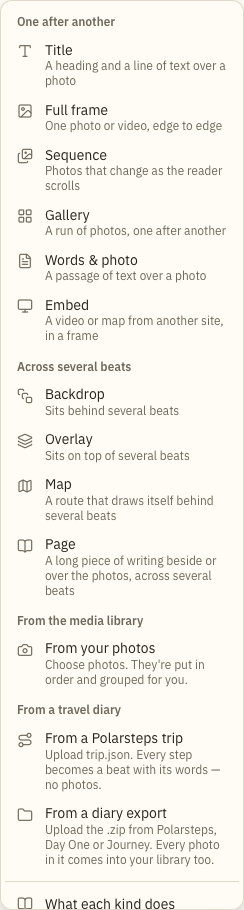
A story is a list of beats. A beat is one step of the story, and it takes its own stretch of scrolling: a title over a photo, a picture edge to edge, a run of photos, a passage of words. The reader scrolls, and the story moves from one beat to the next.
Add beat lists the kinds. Beat types says what each is for.
Beats that run across several
Most beats come one after another. Some run across several instead. A Backdrop sits behind them, an Overlay sits on top of them, a Map draws its route as they pass, and a Page carries a long piece of writing up the screen. Add beat lists them under Across several beats.
In the storyboard, such a beat sits under the beat it starts at, indented. On its Motion tab, Runs across names the first and last beat it covers. Move or re-pace those beats, and it follows.
Screens and pace
Length is measured in screens. One screen is one screen-height of scrolling. The top bar says how long the story is, for example “15 beats · about 22 screens”, and the preview says which screen you are on.
A beat's Pace is how long it lasts: Brisk, Normal, Relaxed, Unhurried or Lingering. Normal is as long as the beat's photos and text need. Brisk moves on before the reader settles, and Lingering holds a beat the longest. On the Motion tab, the Pace row shows the beat's length as “≈ 2 screens”.
Only Lingering lets a video's own length decide: the beat is made long enough to play it, up to a minute. A video that plays with the scroll does the same at any pace.
The story panel sets a Pace for every beat that hasn't chosen its own, under Defaults for every beat. In the timeline, you can also drag a beat's right edge.
A beat can also start later than the one before it ends. Drag its left edge in the timeline to the right, or use Starts under Pace on its Motion tab. The beat and every beat after it move later, and the screens in between show whatever overlays, pages, maps and backdrops run there, or else the story's background. Anything that starts earlier stays where it is. Drag the edge back to close the space.
An overlay, page, map or backdrop can run past the last beat. Drag its end past the end of the timeline, or move its end under Runs across on its Motion tab past the last beat, and the story grows to fit it. Shorten it again and the story gets shorter too.
The storyboard
The storyboard is the list of beats, in the order a reader meets them. Each row shows the beat's number, photo, name and kind. A frame that is still waiting for its photo has a dashed outline and says Needs a photo. Select a row to edit that beat. Drag its handle to move it, or use the up and down arrow keys. The eye hides a beat in the preview while you work on the beats around it. It still publishes.
Hold Shift and press up or down to choose a run of beats. A run of photo beats can be merged into one sequence or gallery.
The beat panel
Select a beat and its panel opens beside the preview. It has four tabs.
- Content holds the beat's material: photos, words, a route, a link.
- Look is how the beat appears at rest.
- Motion is everything the scroll changes: pace, motion, text animation and the transition into the next beat.
- Comments are notes for the people you work with.
A setting that comes from the story shows a Story badge until you give the beat its own value. Once it has one, a reset button puts the story's back. Look and motion covers the settings.
A beat that is only there for the scroll, such as a backdrop or a copy of a photo for a crossfade, can be left out of the story read as a page. Turn off Show this beat under Read as a page at the foot of its Content tab. Readers who scroll still see it, but the page, its downloads and its feed leave it out, and so does its reading time. Captions and words its sound speaks stay. The storyboard says Scroll only under its name.
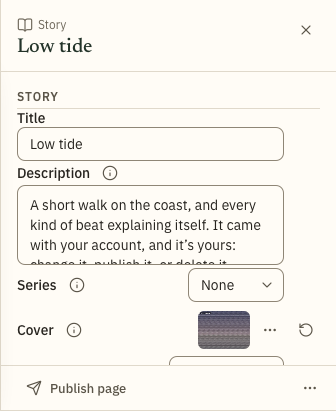
Click the story's title in the top bar to open the story panel: title, description, cover, theme, reading settings and defaults for every beat.
The timeline
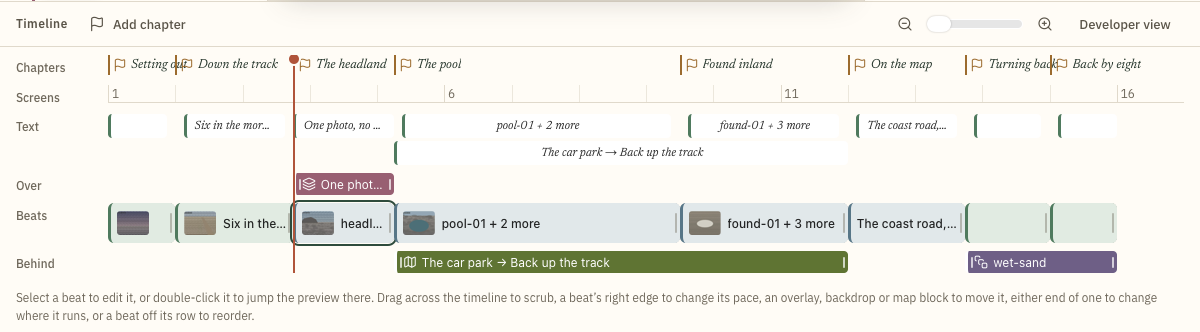
On a computer, the timeline under the preview shows the whole story across its screens. A lane is drawn only when the story has something for it.
- Chapters
- A flag at each chapter.
- Screens
- The ruler: screen numbers along the story.
- Text
- When each beat's words are on screen. A diamond marks a keyframe.
- Over
- Overlays and pages, and maps set to draw over the photos.
- Beats
- The beats, one after another.
- Behind
- Backdrops, and maps that draw behind the photos.
Select a beat to edit it, or double-click it to jump the preview there. Drag across the timeline to scrub, a beat's right edge to change its pace or its left edge to start it later, an overlay, backdrop or map block to move it, either end of one to change where it runs, or a beat off its row to reorder. The slider above the lanes zooms in.
Selecting a beat leaves the preview where it is, so you can put the playhead where you want it and then work on the beat. The storyboard works the same way. From the keyboard, Enter selects a beat and Control or Command with Enter jumps the preview there too.
On a phone, the timeline is the filmstrip under the picture. It shows the beats in order. Tap one to edit it, or double-tap to jump the preview there too.
A thin line down the right edge of the picture fills as the story scrolls, so a scroll always shows something happening. Further down is further on, and a gap in the line is where a chapter starts. Readers see the same line. It only shows where you are; to jump, use the filmstrip or the chapter menu.
Chapters
A chapter is a named stop. Readers jump between chapters with the chapter menu, and the story's keys and edge taps move from one to the next. To add one, choose Add chapter here at the foot of a beat's panel, or Add chapter above the timeline. A chapter at the top of a beat is the heading above that beat in the storyboard.
On the timeline, tap a chapter's flag to go there and edit it, or drag the flag to move the chapter. Tapping an empty place in the chapter lane adds one, and Undo takes it back.
By default a fast scroll holds at each chapter and lets go on the next push, so readers don't pass one unnoticed, and auto-scroll stops there for a couple of seconds. Turn that off for the whole story with Pause at each chapter in the story panel, or for one chapter with Pause at this chapter.
To keep a stop without naming it to readers, turn off Show in the chapter list for that chapter. Readers still stop there, but it is left out of the chapter menu, the bar's chapter name and the story read as a page or downloaded. Its flag on the timeline turns grey.
Edit and Preview
The top bar has three modes. Edit is where you build. Preview hides the storyboard and the panel, and gives the story the whole width, the way a reader gets it. Publish is where the story goes out.
In Preview, Full screen on the reader bar shows the story with nothing around it, and Leave full screen brings you back to the same place.
In Edit the preview is a place to work: select, drag and scrub. Phone and desktop covers seeing the story the way a phone holds it.
Publishing and sharing covers the Publish mode.