 Scrolling Stories
Publishing and sharing
Who can read a story, its address, private and preview links, passcodes, schedules and teasers.
Publish and unpublish
Choose Publish at the top of the editor. Publish story puts a draft out for the first time, and Publish changes puts out what you have changed since. Readers see the last version you published. Your draft stays yours until then.
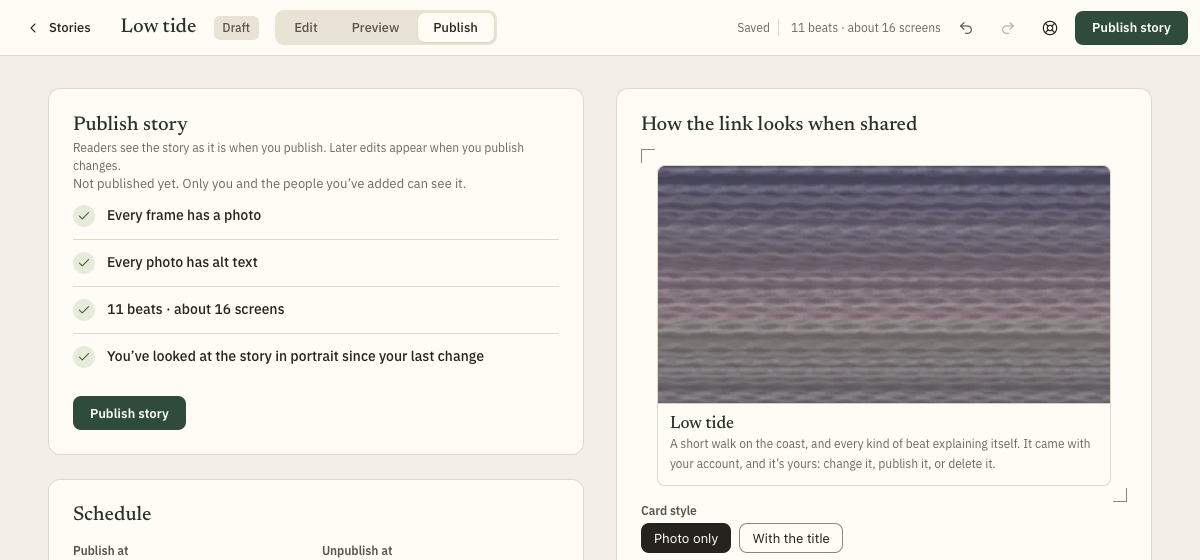
Unpublish takes the story down. Nothing is deleted, and you can publish it again. Versions, lower on the page, lists each version you have published. Preview shows one, and Publish version puts an earlier one out again.
Who can read it
Who can read it, in Publish, has four choices.
- Anyone. Anyone with the link can read it. No sign-in needed.
- Signed-in readers. Only readers signed in to Scrolling Stories can open it.
- My groups. Only members of the groups you put it in can read it. It is never in Browse, the feeds or search. This choice is there once you belong to a group.
- Private link. Only people with the link can read it. Private links are never listed or embedded.
A story anyone can read can also be shown in Browse and the feeds anyone can follow. Show in Browse and feeds turns that on.
The address
A published story has an address made of your handle and a link for the story, like /u/your-handle/your-story/. In Publish, the Link section has a field for each, and shows the address readers find it at. If you don't choose a story link, one is made from the title when you publish.
Use lowercase letters, numbers and hyphens. You can change your handle once. If you change a published story's link or your handle, the old address redirects to the new one.
Private links
Choose Private link under Who can read it, and the Link section shows the link to copy. Anyone you send it to can read the story, with no account. While a story is on a private link it has no readable address, so nobody can guess it, and anyone who has the link can pass it on.
Passcodes
A story on a private link can have a passcode as well. Set one in the Passcode section, with at least 4 characters. Readers enter it once per browser. Send it separately from the link. Replace changes it, and Remove takes it off, so anyone with the link can read the story.
Schedules
In Schedule, Publish at sets a date and time for a draft to go out, and Unpublish at sets one for a published story to come down. Times are in your time zone, and a change happens within 15 minutes of the time you set. Readers see the story as it is at that time, so you can keep editing until then. Unpublishing deletes nothing.
Preview links
A preview link shows a draft to someone who isn't signed in. Choose Create preview link in Publish. It works for 24 hours and shows the story as it is now, even before you publish. A link you turn off stops working straight away. Shared preview links lists each link, when it expires and whether it has been opened.
Open full-screen preview is for you: it shows the story the way a reader gets it, starting where the playhead is.
Make a teaser
A teaser is a short video of your story to post on Reels, TikTok or Shorts. It is upright, like a phone held up, and has no sound. It scrolls through the story at a reader's pace, and ends on a closing card with the title, your name and the story's address. For now a teaser starts at the beginning and runs for 15 seconds, or less if the story is shorter.
In Publish, the Teaser card has Make teaser. The row under it says Preparing… while the video is made, then the size and Ready with Download. Download links last a day, and a teaser is kept for a week.
A teaser shows the version you have published, so publish your changes first. While that teaser is ready, Make teaser is dimmed and Download is the way to it. After you publish again, Make teaser makes one of the new version, and the earlier ones stay in the list until they expire.
The card says why when a teaser can't be made. The story has to be published and open to Anyone, so a story on a private link, or for signed-in readers or your groups, can't have one. Each plan includes a number of teasers a month; the card says when you have used them and when you get more. A teaser that can't be prepared doesn't count: choose Try again. When a teaser has expired, Make it again makes a new one, and it counts as one of the month's teasers.