 Scrolling Stories
Your first story
Three ways to start, what to do first, and how to publish.
Three ways to start
On your Stories page, choose New story. Start a story offers three ways in:
- Blank. An empty storyboard. Add your first beat.
- From your photos. Choose photos. They are sorted by date taken and grouped into beats.
- A template. It sets out the beats and leaves an empty frame for each photo. You can publish once every frame has a photo.
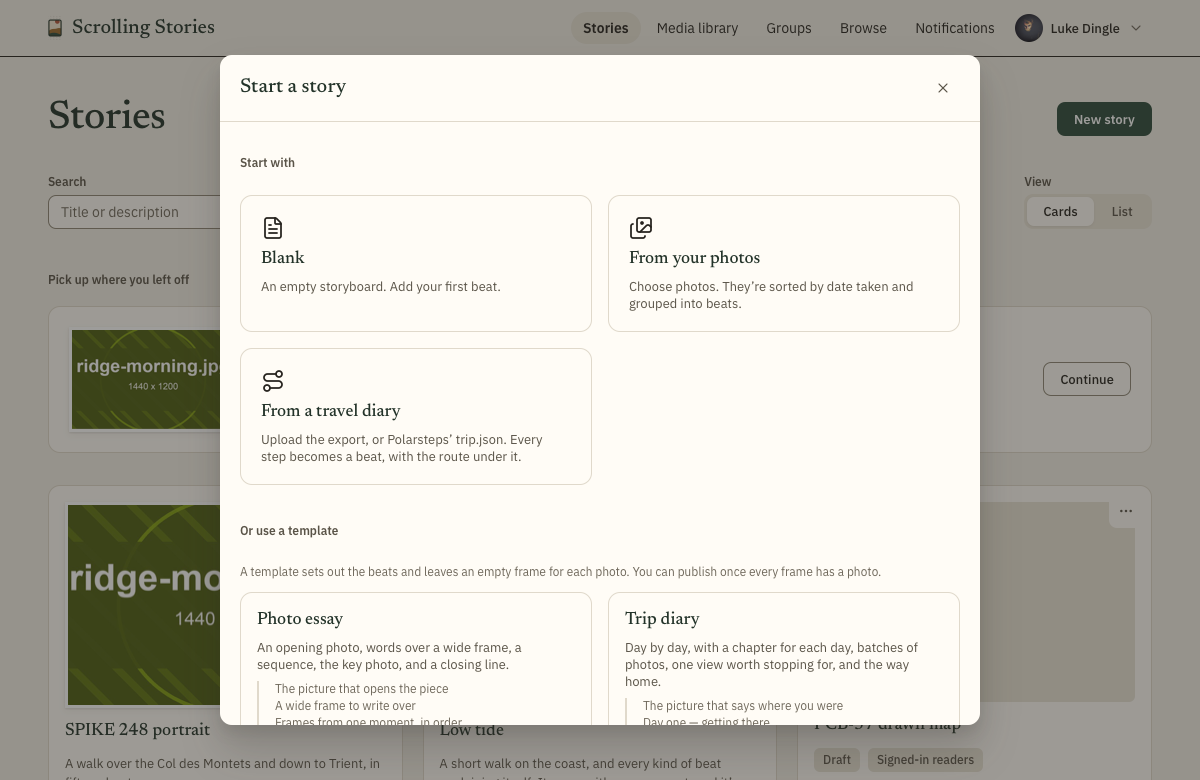
If you keep a trip diary in Polarsteps, From a travel diary turns every step into a beat, with the route under it. Maps and trips covers routes.
A new account also comes with a story called Low tide. It has most kinds of beat, and each one explains itself. Open it to see how the pieces fit, then change it, publish it or delete it.
What to do first
- Choose Add beat and pick a kind. A Title beat is a good first one.
- Your media library opens so you can choose a photo. A new beat never takes one for you. Close the library to choose later. A Full frame, Sequence, Gallery or Backdrop then waits as an empty frame, marked Needs a photo in the storyboard. A Title or Words & photo beat shows its words over whatever runs underneath.
- On the Content tab, write your words. Words are written in Markdown:
# heading,**bold**,*italic*. - Scroll the preview to see it move. Select a beat in the storyboard to edit it, and double-click it to jump the preview there.
- Add more beats. On the Look and Motion tabs, change how each one appears and moves.
The editor saves as you go. The top bar says Saved when it has.
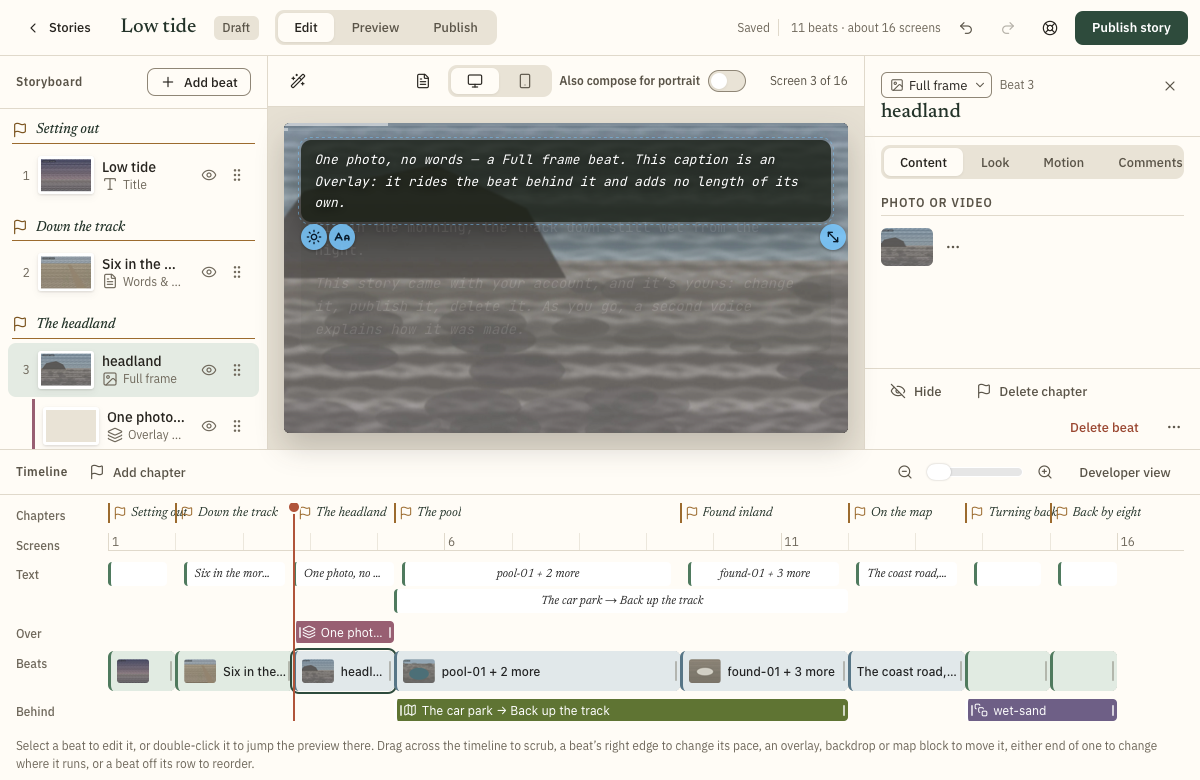
How a story is built names each part of the editor.
Publish it
Choose Publish at the top. It lists what still needs doing: every empty frame needs a photo, whether a template left it or you added a beat and closed the library, and photos without alt text are flagged, because alt text is read aloud to readers who can't see the photo.
Choose who can read the story, then Publish story. After you change something, Publish changes puts the new version out. Readers see the last version you published, never your draft.
Addresses, private links, passcodes and schedules are on Publishing and sharing.