 Scrolling Stories
Beat types
What each kind of beat in Add beat is for.
Some kinds come one after another. Others run across several beats, as Beats that run across several explains. Every kind has its own section here, in the order Add beat lists them.
Title
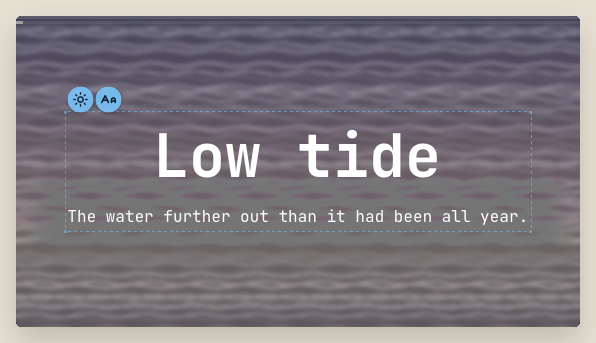
A heading and a line of text over a photo. Use it to open a story or to start a new part. On the Look tab, Style chooses how the words sit: Card, Caption, Headline, Quote or Plain.
Full frame
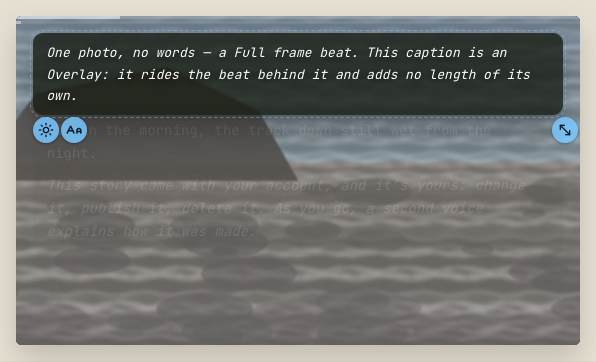
One photo or video, edge to edge. Use it for the picture that carries a moment. A video is a Full frame too, and the storyboard marks it with a video icon.
Sequence
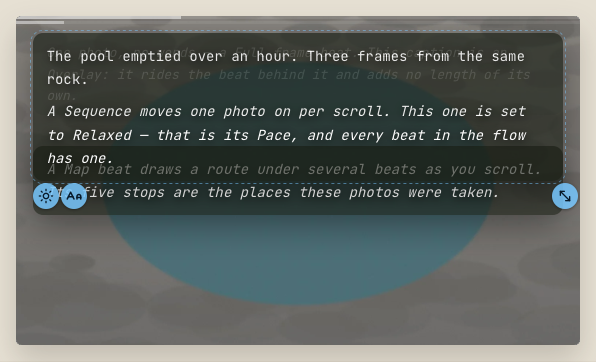
Photos that change as the reader scrolls. A Sequence moves one photo on per scroll, so it suits frames from one moment, in order. How long it lasts depends on its Pace, and its Layout works as it does for a Gallery.
Gallery
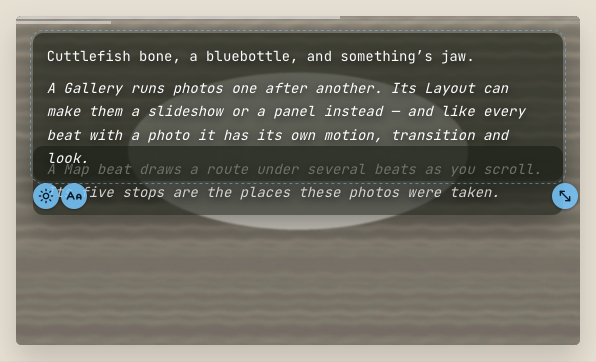
A run of photos, one after another. The Layout row on the Content tab chooses how:
- Strip. Each photo gets its own stretch of scrolling.
- Slideshow. The photos take turns, edge to edge.
- Panel. The photos sit in a smaller frame that you drag into place, like text.
On a Strip, Photo by photo on the Motion tab lets each photo move its own way. To turn a run of photo beats into one gallery, select them with Shift and choose Merge into a gallery. Split into one beat per photo does the reverse.
Words & photo
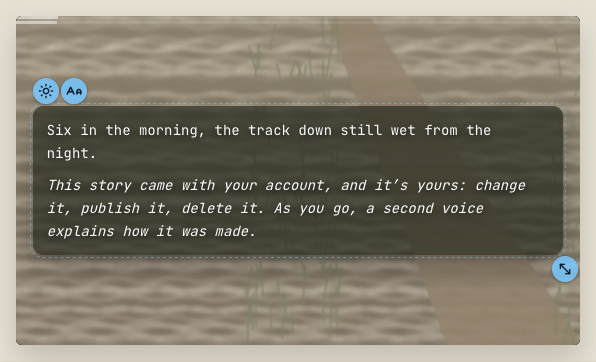
A passage of text over a photo. Write the words on the Content tab, in Markdown. On the Look tab, Style sets how they sit on the photo, Box draws a panel behind them, which the words always stay clear on, and Position sets where they come to rest. You can also drag the words in the preview.
Words can arrive and leave with text animation.
Embed
A video or map from another site, in a frame. Add a link from YouTube, Vimeo or OpenStreetMap on the Content tab. Readers get the privacy version of the player, and see a picture first. The player loads when they tap it, so nothing loads before they choose.
Layout sets the frame: Panel is a smaller panel you drag into place, like text, and Full frame fills the screen.
Map on its own
A route that draws itself between two beats, with a pace of its own. It is added after the beat you have selected. Add its stops on the Content tab, and set how long it holds with Pace on the Motion tab. The beats either side hand over to it with their usual transition. Maps and trips covers stops, legs, tracks and the camera.
Soundtrack
Music or ambient sound that plays across several beats. Choose a file from your library, then set its Volume and where it starts and ends. A soundtrack adds no length of its own. Readers hear nothing until they turn sound on from the Sound control.
Backdrop
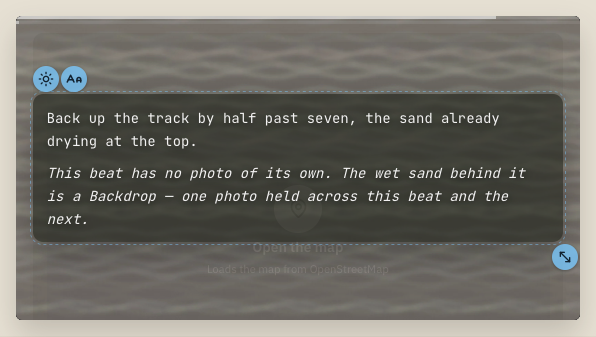
One photo or video held behind several beats. Use it where a single picture should stay while the words around it change. A beat with no photo of its own shows the backdrop through it. Runs across on the Motion tab sets the first and last beat it stays behind.
Overlay
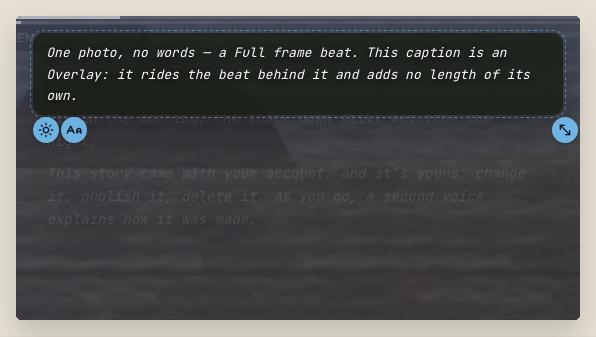
Words, or a photo, that sit on top of several beats without moving them. An Overlay rides the beats it covers and adds no length of its own. Use it for a caption that should stay while the pictures change. Runs across on the Motion tab sets where it starts and ends.
To change an Overlay's words partway through, put the playhead where the new words should start and choose Change the words at the playhead in its ⋯ menu. The Overlay stays one Overlay: its path and its timing stay as they are, the words the old and new share stay where they are on every line, and only the letters change, crossing over a quarter of a screen around that point. The new words wrap where the old ones would, each line starting where theirs does, so a word added to a short line stays on that line. The Text box then holds the new words. A change needs half a screen of the same words on each side. If the playhead is too near an end or another change, the change goes at the nearest place that has that, and words with no such place can't take one.
The Text box always edits the words at the playhead. Words, above it, lists every set of words and the part of the run each one fills; choose one to go to it. Starts, under it, moves where those words take over, so after you make the Overlay longer or shorter you can put each change back without removing it. It stops half a screen from the next change. To take a set of words out, put the playhead on them and choose Remove words in the ⋯ menu. Two Overlays that meet end to end, such as one cut in two before, can be made one again with Join with the next overlay.
Map
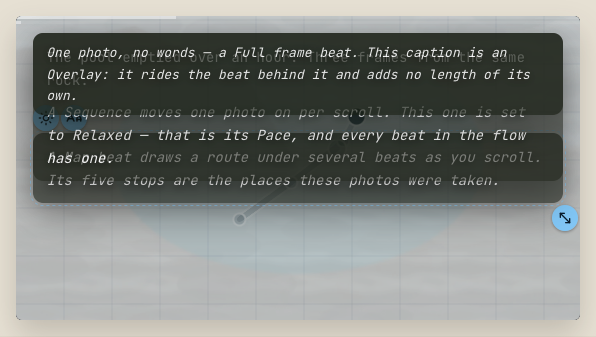
A route that draws itself behind several beats as the reader scrolls. A new Map beat starts with a stop for each photo it covers that has a place taken. Maps and trips covers stops, legs, tracks and the camera.
Page
A long piece of writing beside or over the photos, across several beats. Its words run up part of the screen as the reader scrolls, with the beats drawn in the rest. Write it with Write the page, or choose a page you have kept in your media library.
In the sheet, Heading opens a list of Normal text, Heading 1, Heading 2 and Heading 3. Choose one to set the paragraph where the cursor is. Typing #, ## or ### and a space at the start of a line does the same.
On the Look tab, Size sets how much of the screen the page takes: Quarter, Third, Half or Whole. A Whole page rises over the photos and leaves off the top. For the other sizes, Landscape and Portrait choose the side it takes on a wide screen and on a phone held upright. Where the beats are too short for the words, they are made longer.