 Scrolling Stories
Maps and trips
Stops, legs, tracks, your own map, the camera, and where a map draws.
A Map beat draws a route behind or over the photos as the reader scrolls. This page covers building the route, and choosing where it draws.
Stops
A stop is one place on the route. The route follows the stops in the order the Content tab lists them. A new Map beat starts with a stop for each photo it covers that has a place taken. Add stop adds another. Draw the whole route replaces the stops with one stroke you draw on the plan, and tapping the line afterwards drops a stop onto it.
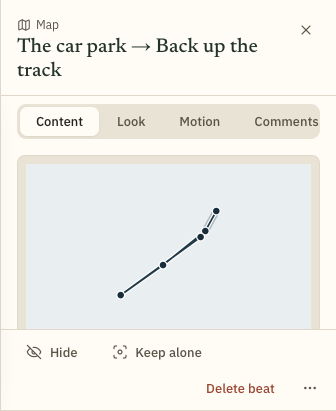
Give a stop a name and readers see it on the map. The map beat's ⋯ menu has Add a title beat at each named stop and Add a words & photo beat at each named stop, which make a beat for each. The Stops ⋯ menu goes the other way: Name 3 stops from the title beats, where the number is how many it would name.
Legs
A leg is the line from one stop to the next. Under Path, choose a leg and give it a Shape: Straight, Arc, Great circle, Road, or Draw to trace it on the plan. Choose a Line of Solid, Dashed or Dotted. Words are read beside the stop the leg arrives at, never on the line.
Road follows the roads or paths between the two stops. Under it, Travel chooses Drive, Walk or Cycle. The two stops are sent to a road finder once, and the line it finds is kept with the story, so it never changes for a reader. The leg changes only when the road arrives. If a stop moves afterwards, the line stretches to meet it until you choose Find the road again. Road is offered only on a real place, and each month you have a number of road searches. The road finder is credited wherever the road is drawn.
Apply to every leg gives every leg this one's shape and line. Each keeps its own words. A road isn't copied, because it is found for its own two stops.
Tracks
A track is a route read from a recording of a trip: GPX, TCX, KML, KMZ, GeoJSON, CSV, FIT, a Polarsteps export, or a Google Timeline or Location History export. Under Track on the Content tab, choose a track you have uploaded, or upload one from the ⋯ menu. A track replaces the beat's stops with its route.
A track keeps its own stops, legs and map picture. Edit them on the track in your media library, or in any story that uses it.
If your photos have a time but no place, the Track section offers Place 4 photos on the track, with your own count. It gives each photo the place the track was at that moment. If the camera's clock was out, set Clock offset first: the hours and minutes added to every photo's time before it is looked up on the track.
Your own map
Instead of a plain map, you can draw the route on a picture of your own: a sketch, a scan, a map you invented. Choose it under Your own map. A real place keeps your stops as real positions, and you drag two of them onto the drawing to say where they are. An invented place makes the picture the world, and you drop stops straight onto it. Back to the grid removes it.
Camera
On the Motion tab, Camera chooses how the map moves. Follow travels from stop to stop as the reader scrolls. Hold keeps the whole journey in frame while the line draws across it. Zoom, Wider or Closer, sets how near Follow stays. Each stop’s row shows its zoom, and a faint one follows the map’s. Readers who turn off motion see the whole route.
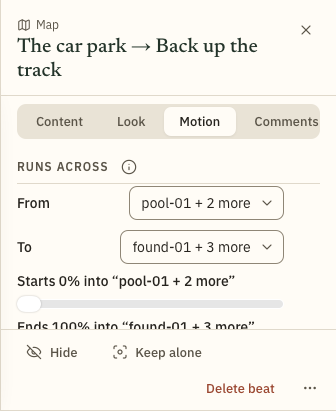
A map runs across several beats, from the first to the last. Beats that run across several explains how to change them.
Behind or over the photos
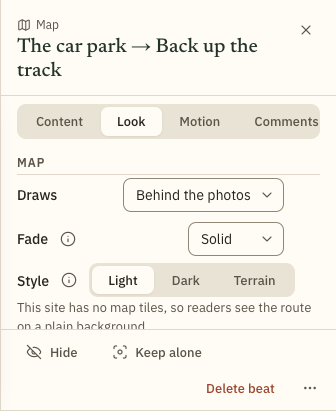
On the Look tab, Draws says which side of the photos the map is on.
- Behind the photos. The route is a backdrop. A photo laid over it covers it.
- Over the photos. The route draws over the photos and under the words. Fade it to let them through.
- Takes over. The photos give way to the route across the first beat, and the route holds for the rest.
The Look tab also sets the map's Style, Light, Dark or Terrain, and Show direction, which draws small arrows along the line.
A map on its own
To show a map on its own, with no photo in front of it, set Draws to Takes over. The photos fade away across the first beat the map covers, and the route fills the screen for the rest, with the words still on top.
With Behind the photos, a photo in the same beats covers the map, so readers don't see it.